
Jira timesheet approval
Jira Cloud records time. It does not have a timesheet that a person submits and a lead approves. This page explains the gap, the usual ways around it, and how Saguaro Hours for Jira handles it.
What Jira has, and what it does not
Jira's built-in time tracking lets people log work on an issue. Each entry is a worklog with an author, a date, a duration and a comment. Admins set working hours per day, working days per week, the display format and who may log, edit or delete worklogs. Sources: Atlassian's "Configure time tracking" (https://support.atlassian.com/jira-cloud-administration/docs/configure-time-tracking/) and "Log time on a work item" (https://support.atlassian.com/jira-software-cloud/docs/log-time-on-an-issue/), read on 2026-11-03.
Those pages describe no timesheet, no period to submit, no approval and no lock. The same settings page says Marketplace apps can extend Jira's time tracking. So if a lead must sign off each person's hours for a week or a month, the sign-off has to happen somewhere else.
How teams handle it without an app
- Search and check. A lead runs a search such as
worklogAuthor = currentUser() AND worklogDate >= "2026-10-26" AND worklogDate <= "2026-11-01"for each person, or keeps a dashboard filter, and checks the hours by eye. - Spreadsheet sign-off. Someone exports the worklogs, puts them in a spreadsheet and emails it to the lead, who replies to approve.
- Rules by convention. The team agrees not to change last week's worklogs after sign-off.
These work for small teams. Their limits follow from how they are built:
- The approval lives in an email or a file, apart from the worklogs.
- Nothing in Jira stops a worklog from changing after the hours were approved, and nothing records that it changed.
- There is no list of who has not submitted yet.
How Saguaro Hours does it
Saguaro Hours adds periods, submission, approval and locking on top of normal Jira worklogs.
1. The admin sets periods and teams
A Jira administrator picks one period type for the site: weekly (Monday to Sunday) or monthly (a calendar month). The admin sets the required hours per week, 40 by default. A month's required hours are the weekly figure divided by 5, times the weekdays in that month. The admin then creates teams, each with a lead and members.
2. Each person submits their period
People log time in the weekly grid or from the Log work panel on an issue. Every entry is a normal Jira worklog written as that person. When the period is done, they press Submit timesheet. The app stores the hours it read from Jira with the submission.
A submitted period is locked in the app. Its grid cells turn grey and read-only, and the Log work panel refuses those dates.
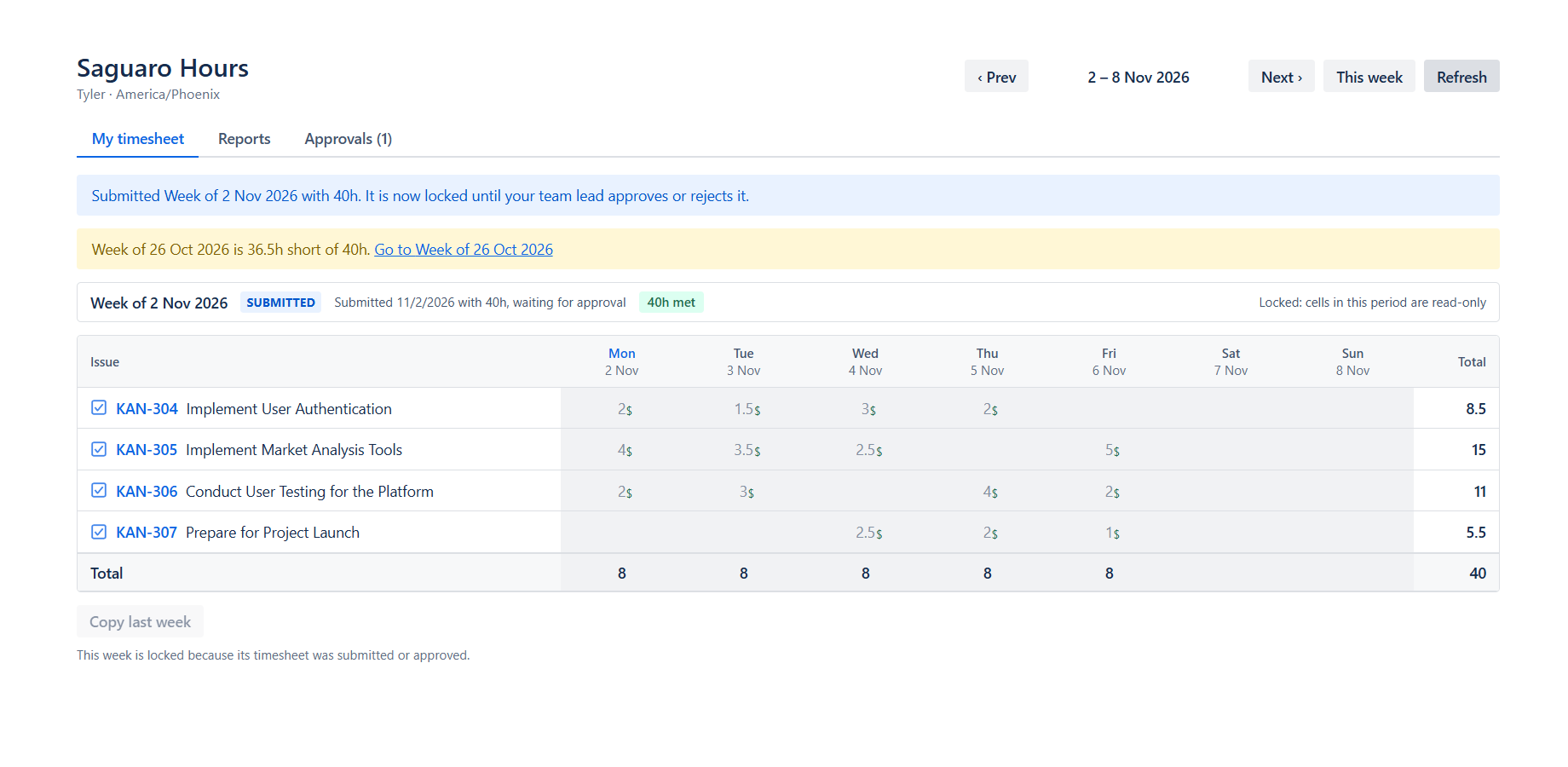
3. The lead approves or rejects
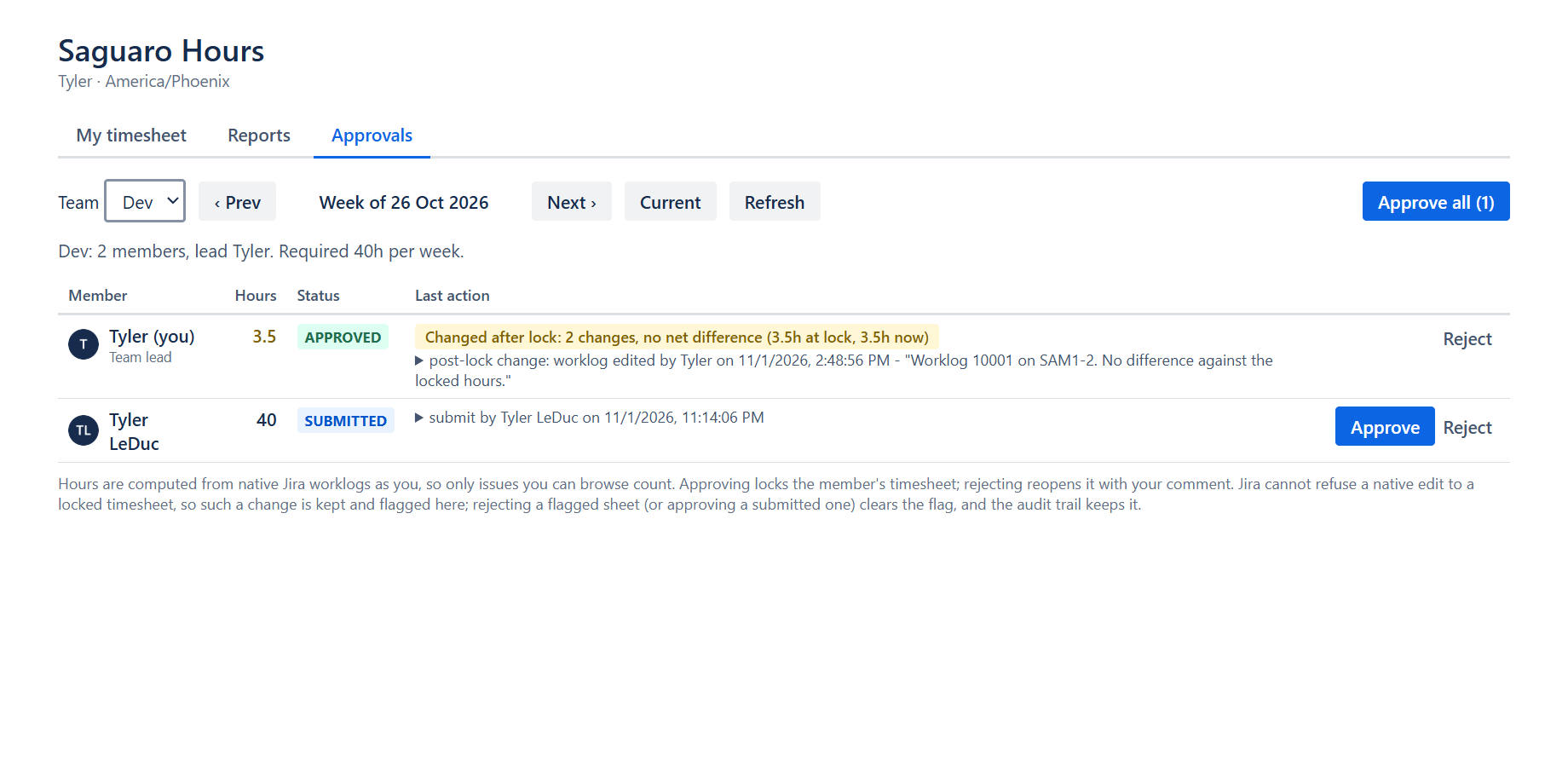
The lead opens the Approvals tab, picks the team and the period, and sees each member's hours, status and last action. Hours under the required figure show in amber.
- Approve a submitted sheet.
- Reject with a comment. A rejection needs a comment. A rejected sheet opens again, and the person edits and resubmits it.
- Approve all approves every submitted sheet in the team for that period. Sheets that are open, rejected or already approved are left as they are.
Only a submitted sheet can be approved. A Jira administrator can act on any team.
4. Approved periods stay locked, and later edits are flagged
An approved period stays locked in the app. The app cannot stop someone from editing a worklog in Jira's own Work log tab, because Jira saves that edit without asking the app. So the app watches for it. When Jira reports a worklog change on a day in a submitted or approved period, the app:
- adds an entry to the audit trail,
- shows a chip on the sheet with the hours before and after, for example "Changed after lock: +0.25h (3.5h at lock, 3.75h now), 1 change",
- leaves the status and the submitted hours as they were.
The lead sees the same chip in Approvals. The warning clears on the next status change, a rejection or an approval.
5. Everyone can see what is waiting
- The Approvals tab shows a count of sheets waiting.
- A banner in the grid points to the previous period if it is short of the required hours or not submitted.
- A dashboard gadget shows a team's hours this period, who has not submitted, and pending approvals.
- Each status change is kept in an audit trail with the person, time, comment and hours. The last 100 entries are kept.
Limits
- Reminders are in the app only. There are no email or Slack reminders in this release.
- Team membership is the current list. Membership by period is not built.
- A lead who is also a member of the team can approve their own submitted timesheet.
- Hours come from Jira as the viewer sees them. Issues the viewer cannot browse are not counted, and days follow the viewer's time zone.
Full details: Periods and approvals and Post-lock warnings.
Try it
Saguaro Hours was submitted to the Atlassian Marketplace on 2026-11-03 and is waiting for approval. It is free for up to 10 users. To try it early, email tyler@leducsystems.com with the subject "Saguaro early access". See the product page for prices.