
Tracking billable hours in Jira
If you bill clients for time logged in Jira, you need to know which hours are billable, at what rate, for which client. Jira Cloud's own time tracking does not record any of that. This page covers the workarounds teams use, their limits, and how Saguaro Hours for Jira handles it.
What Jira records, and what it does not
A Jira worklog has an author, a date and start time, the time spent and a comment. Jira's time tracking settings are working hours per day, working days per week, the time display format, the default unit and copying of comments to the work description. There is no billable setting, no rate and no currency. The same page says Marketplace apps can extend Jira's time tracking. Source: Atlassian, "Configure time tracking", https://support.atlassian.com/jira-cloud-administration/docs/configure-time-tracking/ , read on 2026-11-04.
Workarounds without an app
1. Separate projects or issues for non-billable work
Put internal work (meetings, admin, training) in its own project or issues, and treat everything else as billable. A JQL search such as project != INTERNAL AND worklogDate >= "2026-10-01" AND worklogDate <= "2026-10-31" then lists the billable issues for October.
Limit: billable becomes a property of the issue, not of the hours. One issue cannot hold both billable and non-billable time, and the search still returns issues, not hours (see how to get a worklog report in Jira).
2. A label or custom field on the issue
Add a "Billable" checkbox or a "Client" field to issues and filter on it.
Limit: the same as above. The flag sits on the issue, so every hour logged on it counts the same way.
3. A word in the worklog comment
Ask people to start the comment with a tag, such as "NB" for not billable, and search with worklogComment ~ "NB".
Limit: the search returns issues, not the matching worklogs, so you still add the hours up by hand. One forgotten tag moves time from one side to the other without anyone noticing.
4. Export and a spreadsheet
Export the worklogs, mark each row billable or not in a spreadsheet, and multiply by a rate there.
Limit: the billable decision lives in a file, apart from Jira. When someone edits a worklog after the export, the file is out of date.
All four work for a small team with one rate. They get hard when the same issue holds both kinds of work, when rates differ by client or change during the year, or when someone has to check last quarter's bill.
How Saguaro Hours does it
A billable flag on each worklog
- The Log work panel on an issue has a Billable box next to the date, time and description.
- A Jira administrator sets the default: when it is on, new worklogs from the panel and the weekly grid start as billable.
- In the weekly grid, a small green $ marks a day with billable time.
- Only the person who logged the time can change its flag.
- The worklog itself stays a normal Jira worklog. The flag is stored by the app next to it, in Atlassian-hosted storage.
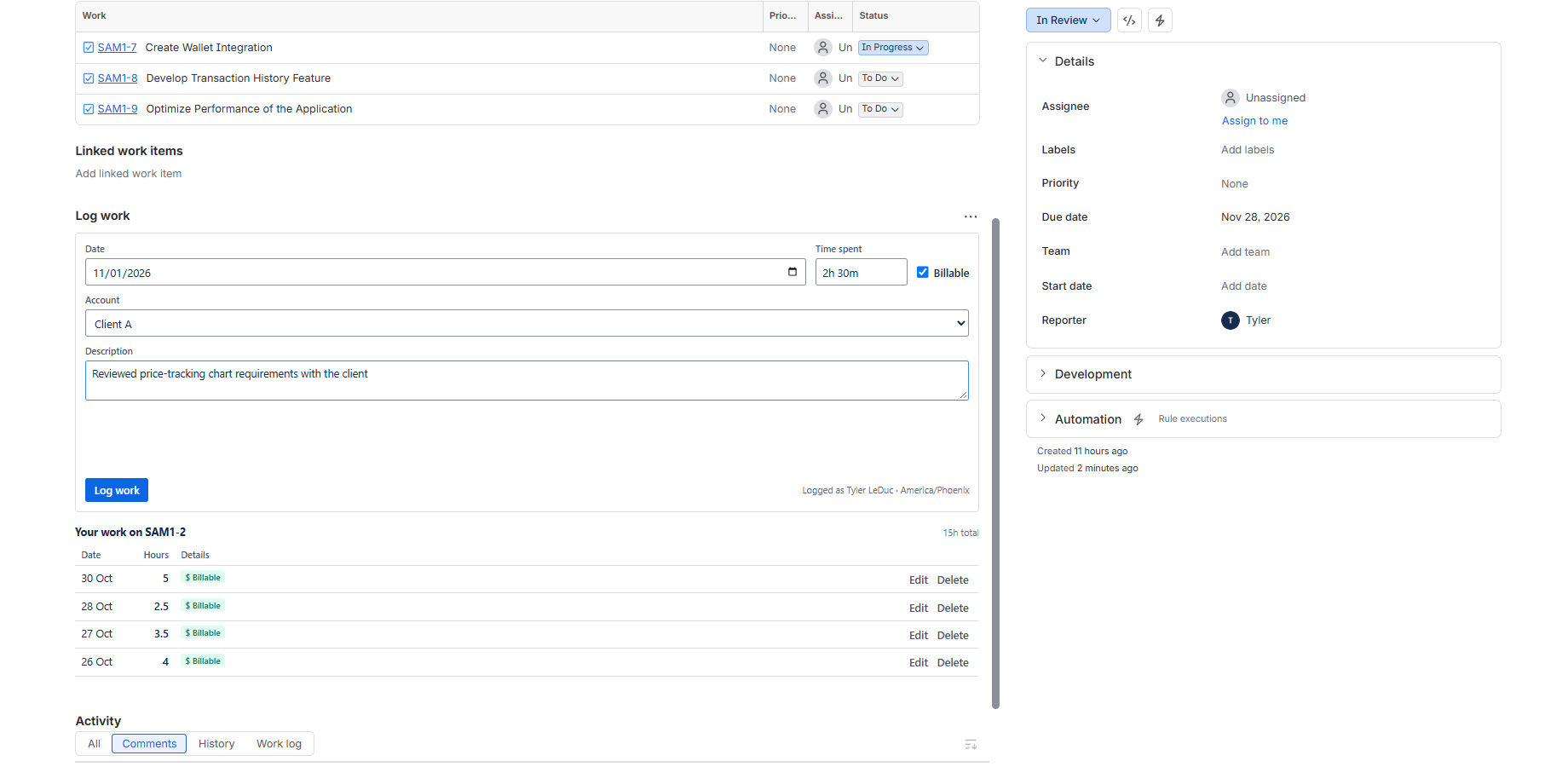
Your own attributes, such as Client
An administrator can add attributes to worklogs: a list (for example Client: Northwind, Globex) or free text. People pick them when they log time. A list value outside the options is refused.
Reports by billable, client or any Jira field
Reports group hours by billable, by any attribute, or by a Jira field such as a Customer dropdown, then by a second field. Summary CSV, Detail CSV and Excel exports carry the billable flag and the attributes.
Rates with start dates
A Jira administrator sets hourly rates on the admin page:
- Cost rates per person, with a default for everyone else. Cost counts every hour.
- Billing rates per value of an attribute (for example Client = Northwind), per project, or a default, in that order. Revenue counts billable hours only.
- Each rate starts on a day and lasts until the next one. A rate change prices later work at the new rate and keeps earlier work at the old rate, so last month's figures do not move.
- An hour with no rate on its day shows no amount instead of a guess.
Who sees money: Jira administrators and the people an administrator names. Team leads are not added on their own. Everyone else gets the same reports with no money columns; the app does not send rates to them.
A billing summary you can print
Run a report for the client's period, then open Billing summary: one page per project, or per value of an attribute such as Client, with hours, billable hours, billing rate and amount (billable hours times the rate). For example, 30 billable hours at $120 an hour is a line of $3,600. A rate change inside the period gives two lines, one per rate, so each can be checked by hand.
Print it, save it as PDF from the print dialog, or download it as an HTML file. It is not an invoice: there is no invoice number, tax or accounting sync.
Coming from Tempo
The Tempo import on the admin page keeps each worklog's billable flag (any billable time counts as billable), the account name and up to five work attributes. See how to export Tempo worklogs to CSV and the move from Tempo guide.
Details: Billable and attributes and Reports and exports.
Status: Saguaro Hours was submitted to the Atlassian Marketplace on 2026-11-03 and is waiting for approval. Everything above is built and tested on my development site as of 2026-11-04. The build under review has the billable flag, attributes, reports by billable or attribute, the exports and the Tempo import. It does not yet have rates, cost and revenue, the billing summary or grouping by Jira fields.
Related
- How to get a worklog report in Jira Cloud
- Weekly timesheets in Jira, with a free Excel template that adds up billable hours
- Jira time tracking apps compared
- Tempo cost calculator
Email me when it's live
Saguaro Hours is free for up to 10 users. Email me when it's live and I will send one email on the day the listing is approved.