
CapEx and OpEx time tracking in Jira
When a company capitalizes the cost of software it builds, finance needs to know how many hours each person spent on capitalizable work, on which project, and at what cost. The developers already log time in Jira. This page covers what Jira records, the workarounds teams use to split CapEx from OpEx hours, and how Saguaro Hours for Jira handles it.
I am not an accountant. This page is about recording the hours. Which work qualifies is a decision for your finance team and your auditor.
Why the hours matter
Under US GAAP, the guidance for internal-use software is ASC 350-40. The payroll costs that can be capitalized are those of employees directly associated with the project, "to the extent of the time spent directly on the project". Source: EisnerAmper, "The Three Stages of Capitalizing Internal-Use Software", 2024-02-19, https://www.eisneramper.com/insights/technology/capitalizing-internal-use-software-0123/ , read on 2026-11-04. Time spent is the input, so the hours need to be recorded per person and per project.
The rules are changing. In September 2025 the FASB issued ASU 2025-06, which removes the project stages from ASC 350-40. Capitalization starts once management has authorized and committed to funding the project and it is probable that the project will be completed and the software used as intended. It is effective for annual periods beginning after December 15, 2027, and early adoption is permitted. Source: Baker Tilly, "Modernizing software accounting: ASU 2025-06", https://www.bakertilly.com/insights/modernizing-software-accounting-asu-2025-06 , read on 2026-11-04. Either way, the hours still have to be split.
Companies reporting under IFRS follow IAS 38 for development costs instead: https://www.ifrs.org/issued-standards/list-of-standards/ias-38-intangible-assets/ .
What Jira records, and what it does not
A Jira worklog has an author, a date and start time, the time spent and a comment. It has no CapEx or OpEx flag, no cost and no rate. Jira's time tracking settings are working hours per day, working days per week and display options. Source: Atlassian, "Configure time tracking", https://support.atlassian.com/jira-cloud-administration/docs/configure-time-tracking/ , read on 2026-11-04.
Workarounds without an app
1. Classify the epic or the project
Mark each epic or project as capitalizable, with a label or a custom field, and count every hour logged under it as CapEx.
Limit: the class belongs to the issue, not the hours. Bug fixing and maintenance on a capitalizable epic are usually OpEx, and they get counted as CapEx. Jira's search also returns issues, not hours (see how to get a worklog report in Jira).
2. Separate issues for maintenance work
Log maintenance, support and meetings on their own issues, and treat the rest as capitalizable.
Limit: it depends on people picking the right issue every time, and nothing shows when they don't.
3. A monthly percentage survey
Each month, ask every developer what share of their time went to each project, then apply the percentages to payroll.
Limit: it is an estimate from memory, made weeks later, and it is not tied to the work in Jira. An auditor who asks how 60% was arrived at gets a spreadsheet, not a record.
4. Export and a spreadsheet
Export the worklogs each month, classify each row in a spreadsheet and multiply by a cost rate.
Limit: the classification lives in a file, apart from Jira. When someone edits a worklog after the export, the file is out of date and nobody is told.
How Saguaro Hours does it
A CapEx or OpEx value on each worklog
A Jira administrator adds a list attribute, for example "Capitalization" with the options CapEx and OpEx. People pick a value when they log time, in the Log work panel on the issue. A value outside the options is refused. The class belongs to the hours, so one issue can hold both kinds of work.
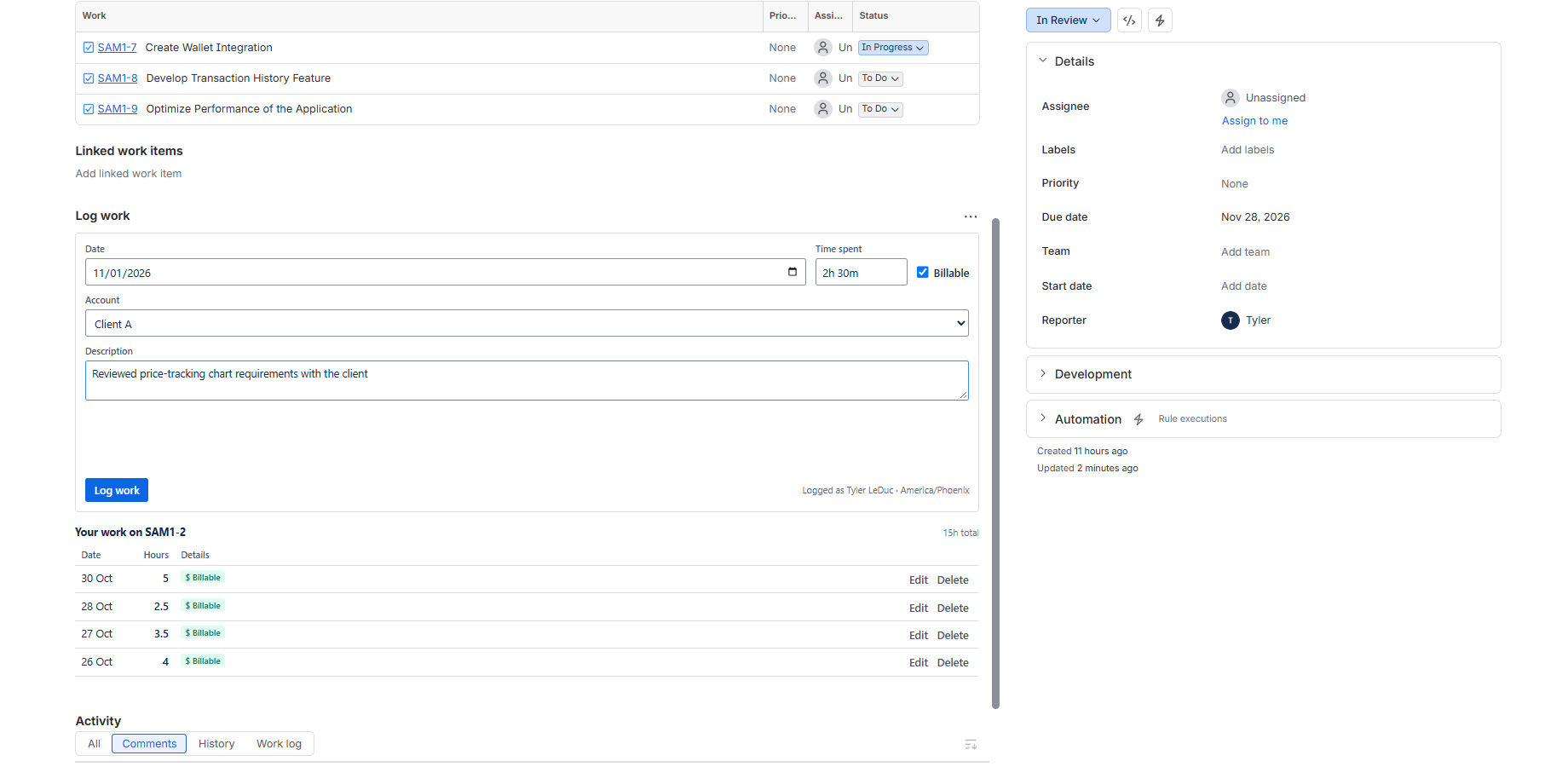
Worklogs stay normal Jira worklogs. The attribute value is stored by the app next to each worklog, in Atlassian-hosted storage.
Reports by class, then by project or epic
Reports group hours by the attribute, then by a second field: user, team, project, epic or parent, issue type, label or a Jira field. Hours with no value are grouped under "Not set", so gaps show up instead of falling silently on one side. Summary CSV, Detail CSV and Excel exports carry the attribute on every row.
Cost from each person's rate
A Jira administrator sets a cost rate per person, with a default for everyone else. Each rate starts on a day and lasts until the next one, so a raise in July prices work from July on and leaves June alone. Reports then show the cost of each group.
An example with made-up numbers: a developer logs 120 hours in October, 90 of them CapEx and 30 OpEx, at a cost rate of $70 an hour. The report shows $6,300 of CapEx cost and $2,100 of OpEx cost for that person.
Only Jira administrators and the people an administrator names see money. Everyone else gets the same reports without cost columns.
Approved periods that stay locked
People submit their week or month, and their team lead approves it, or rejects it with a reason. An approved period is locked in the app. If someone edits a locked day in Jira itself, the sheet is flagged with the hours before and after. Each step goes into an audit trail with who, when, the comment and the hours. So the hours finance capitalized in March are the hours that were approved in March, and later edits made in Jira are flagged on the sheet.
Coming from Tempo
Tempo Timesheets tags each worklog to a Tempo account in a category whose type is Capitalized or Operational (Tempo, "CapEx/OpEx Split", https://help.tempo.io/timesheets/latest/capex-opex-split , and "Tracking CAPEX/OPEX Accounts", https://help.tempo.io/financialmanager/latest/tracking-capex-opex-accounts , both read on 2026-11-04). The Tempo import on the admin page keeps each worklog's account name in a text attribute you choose, plus up to five other columns of the export. Imported values go into text attributes, not into a list attribute such as Capitalization, so imported hours show under "Not set" there. For past hours, group the report by the account attribute; your Tempo account categories say which accounts were capitalized. See how to export Tempo worklogs to CSV and the move from Tempo guide.
Details: Billable and attributes, Reports and exports and Periods and approvals.
Status: Saguaro Hours was submitted to the Atlassian Marketplace on 2026-11-03 and is waiting for approval. Everything above is built and tested on my development site as of 2026-11-04. The build under review has the attributes, reports by attribute, epic or project, the exports, approvals with locks and the audit trail, and the Tempo import. It does not yet have cost rates or grouping by Jira fields.
Related
- Tracking billable hours in Jira
- Jira timesheet approval
- How to get a worklog report in Jira Cloud
- Jira time tracking apps compared
Email me when it's live
Saguaro Hours is free for up to 10 users. Email me when it's live and I will send one email on the day the listing is approved.